

Calculators:
Online Stopwatch
People use this online stopwatch for:
Run a WOD Clock on the Gym TV
Open this fullscreen stopwatch as a WOD clock on a wall-mounted TV or studio monitor in your CrossFit box, garage gym or home setup. Every athlete in the room sees the same elapsed time from any angle — no squinting at a phone between sets, no missing the start of an AMRAP. Works for AMRAPs, EMOMs, chippers and partner WODs.
Big Screen Stopwatch for Tabata and HIIT
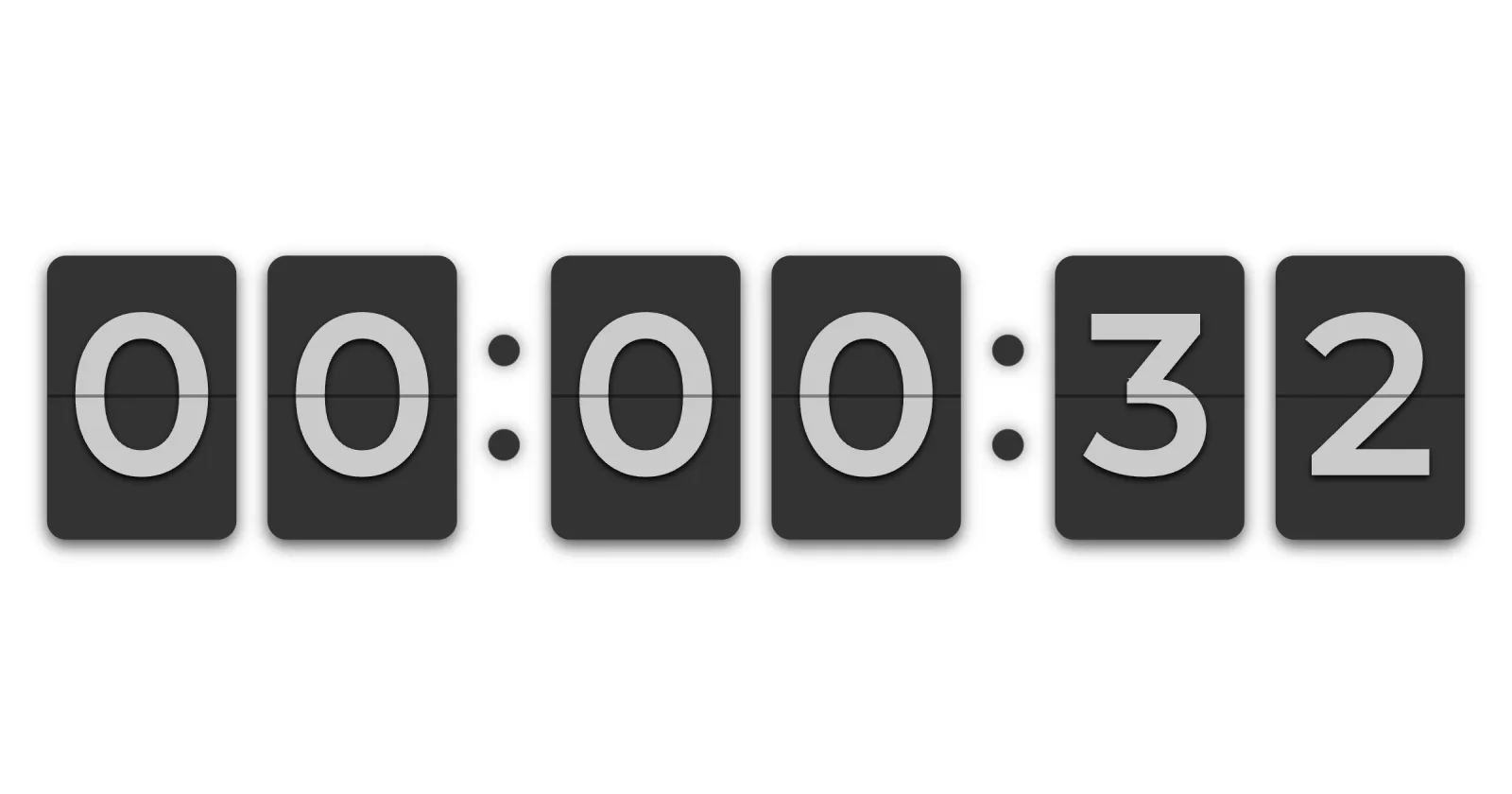
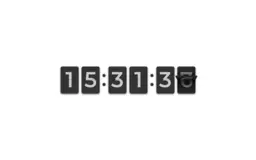
Project a fullscreen tabata clock or HIIT timer on a laptop, smart TV or beamer for group fitness classes, home workouts or live online sessions. The flip-card seconds are readable from across the studio so everyone hits the same intervals at the same time.
Project a Classroom Stopwatch on the Smartboard
Open the stopwatch on a classroom projector, smartboard or screen share for online lessons. Every student sees the same elapsed time during tests, exam practice, group exercises, debates, lab experiments and quiz rounds — no two timers, no arguments about who got more seconds.
Track Live Stream and Recording Time
Place the stopwatch in your OBS scene, in-camera view or on a second monitor while you stream, record a podcast or shoot a video. You and your audience always know exactly how long the broadcast or recording has been running.
Time Meetings, Speeches and Presentations
Display the stopwatch on a conference room TV or confidence monitor during meetings, speeches and presentations. Time-box agenda items so everyone in the room sees elapsed time without anyone having to interrupt the speaker to check the clock.
Why a Fullscreen Stopwatch Beats Your Phone
A fullscreen stopwatch on a laptop, smart TV or second monitor solves things a phone timer simply can't. The display is large enough for a whole gym, classroom or conference room to read at a glance. Nothing else fights for the screen — no notifications, no incoming calls, no battery anxiety. The flip-card aesthetic looks at home on a wall display, studio backdrop or lobby screen in a way a phone app never will. And if you just want a calm, visible counter for solo focus or a casual pomodoro sprint at the desk, fullscreen still works better than juggling a tiny widget.
See what Stopwatch actually looks like