


Calculators:
Fake Zoom Call Screen
You left the meeting
Nothing is recorded or sent.
People use the Fake Zoom Call screen for:
Look Busy in a Zoom-Style Meeting
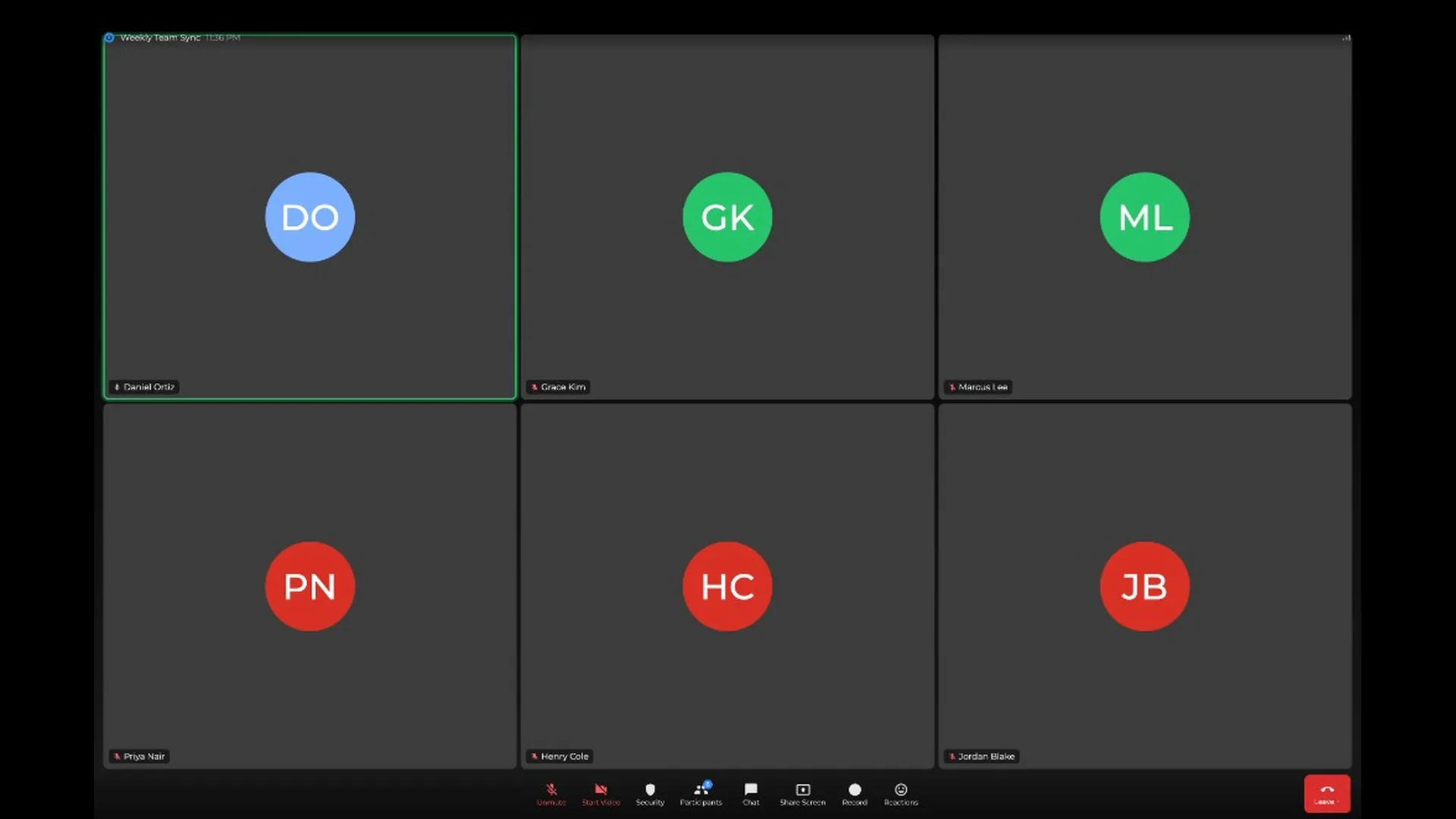
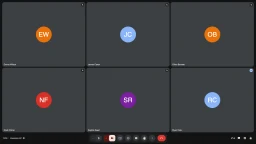
Open the page, go fullscreen, and your screen reads as an ongoing Zoom call: Gallery View tiles, a green ring around whoever is speaking, the real toolbar shape at the bottom. Handy when you want a quiet ten minutes at a desk in an open office.
A Fake Zoom Gallery View Without Signing In
No waiting room, no account, no meeting link — just the interface people picture the instant you say “fake Zoom meeting”: small-radius tiles, the blue accent color, the icon-above-label buttons, and a red Leave button. This page is not made by, endorsed by, or connected to Zoom Video Communications, Inc.
Prank a Friend or Coworker
Leave the fake Zoom call running on a laptop and watch someone tiptoe past “your meeting.” Add their friends' or colleagues' names in the settings panel for the extra beat when they lean in and recognise the participants.
A Believable Screen for Videos and Screenshots
Creators and film students need a meeting screen that does not leak a real account or real faces. This one has no logos, no contacts, and no personal data — just an authentic-looking Gallery View you can point a camera at or capture as a fake Zoom call screenshot for a thumbnail or a slide.
Practise Your Setup Before the Real Call
Turn on the self camera to check your framing, lighting, and background against a full meeting grid. The preview is mirrored, stays in your browser, and stops the moment you leave the call.
Fun Only — Not a Tool for Deceiving People
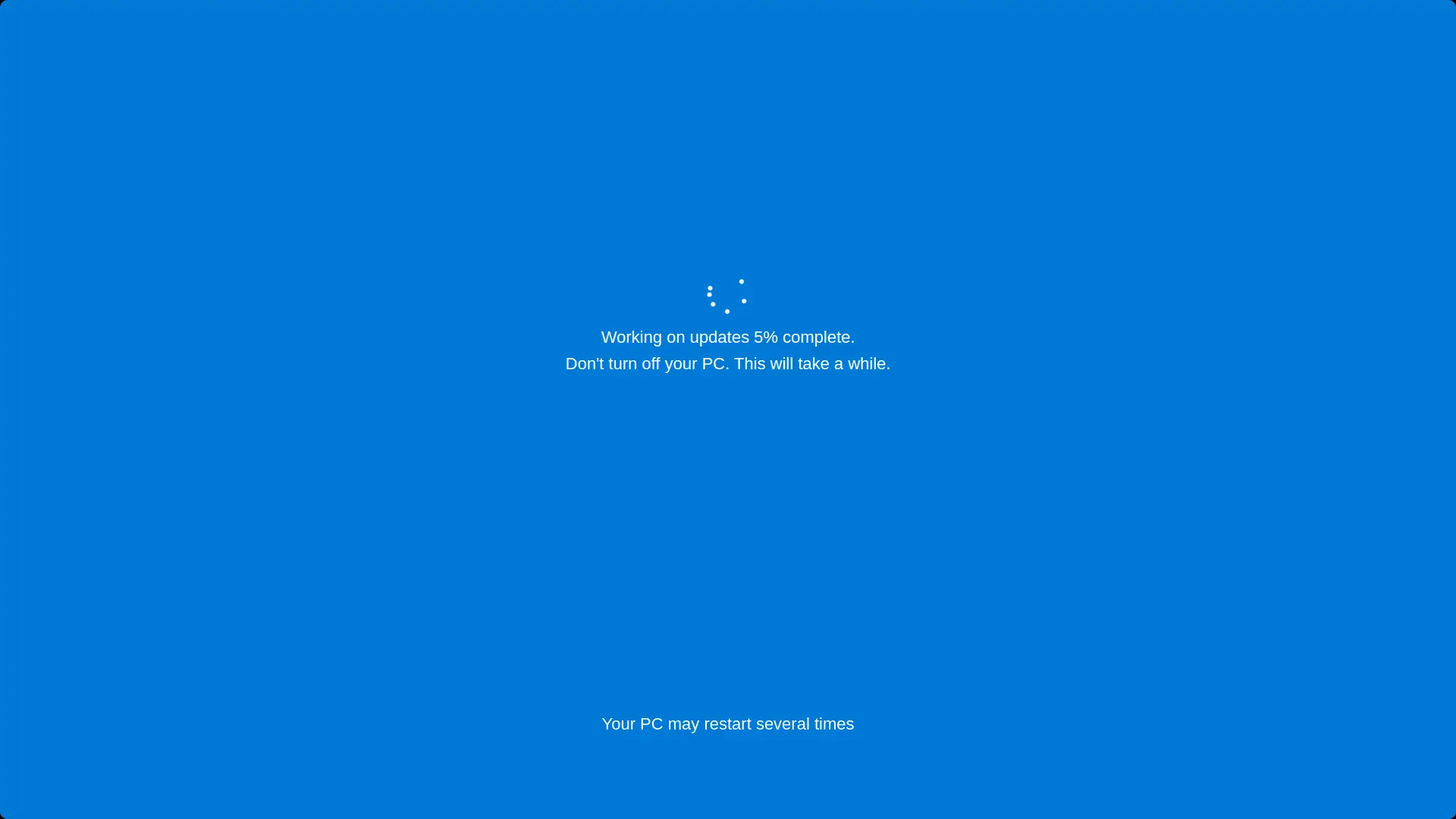
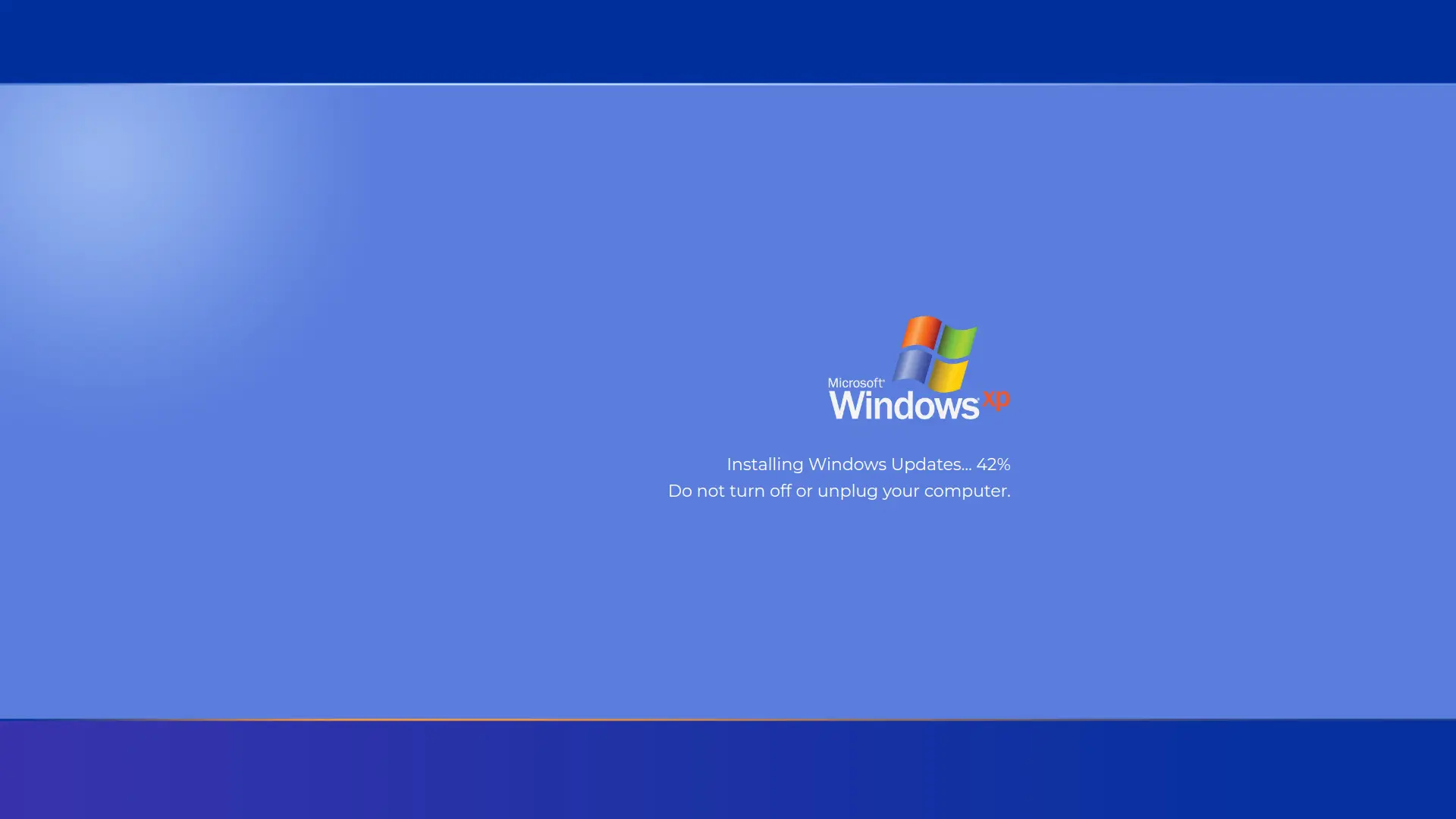
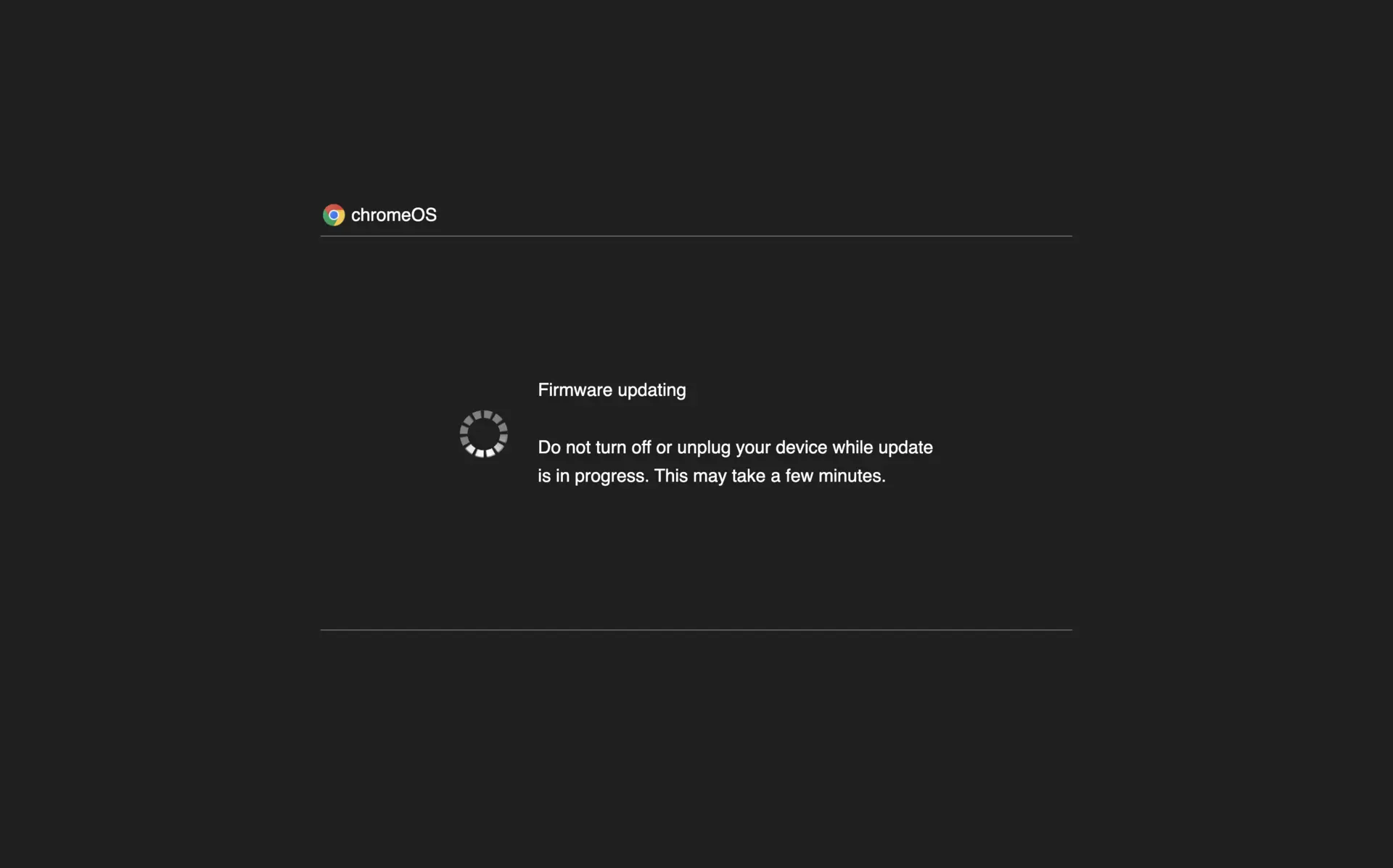
This is a prank screen, the same family as our broken screen and fake update pages. It records nothing, streams nothing, and sends nothing anywhere. Keep it to jokes and look-busy moments: using it to defraud anyone, to mislead in financial or legal matters, or to impersonate a real person is not what it is for.
Try the Other Call Pranks
If the meeting gag lands, the gallery below has a fake Teams call and a fake Slack huddle too — each one redrawn to match its own app's real interface, plus the neutral fake video call and the rest of our prank screens.
FAQ
What is this fake Zoom call screen?
It is a full-screen recreation of Zoom's Gallery View: participant tiles with cameras off, a green ring around whoever is speaking, and the same icon-above-label bottom toolbar the real app uses (Mute, Stop Video, Security, Participants, Chat, Share Screen, Record, Reactions, Leave). Nobody is on the other side — it looks like a meeting, it is not one.
Does it use my camera?
Only if you press the camera button. The preview then runs locally in your browser, mirrored like a normal call app, and it is never uploaded or streamed anywhere. If you deny permission or have no camera, the tile quietly keeps showing your initials.
Can I change the participants?
Yes. The panel on the right lets you set 2 to 12 participants and edit every name; initials and avatar colors update automatically. Your choices are saved in this browser so the same room comes back next time.
How do I make it fullscreen?
Press F or Space, double-click the meeting area, or use the fullscreen icon in the corner. In fullscreen only the meeting grid and the toolbar are visible — the rest of the site is hidden.
What happens when I press Leave?
The call is replaced by a “You left the meeting” screen with a Rejoin button and a link back to the home screen. Rejoin restores the same room; the camera is not switched back on automatically.
Can I use it for a fake Zoom call screenshot?
Yes, that is one of the easiest ways to use it. Set the names and the number of participants, go fullscreen, and take a normal screenshot — you get a clean Gallery View with no real accounts, no real faces, and no meeting actually created. Handy for thumbnails, slides, memes, and mock-ups where a real screenshot would leak private data.
Is this affiliated with Zoom?
No. This is an independent, unofficial recreation of a generic video-meeting interface made for entertainment and prank purposes. It is not made by, endorsed by, or connected to Zoom Video Communications, Inc. in any way. No Zoom logos or trademarks are used — every icon and the small camera-glyph mark on screen are original, redrawn artwork.
Is this a real meeting app?
No. It cannot join, host, or record meetings and it is not connected to any conferencing service. It is a prank screen for jokes and “look busy” moments.
See what Zoom Call actually looks like